
Bluetooth is a wireless technology that lets you connect devices together. On Windows 10, you can use Bluetooth to pair keyboards, phones, speakers, and more.
Bluetooth is great when it works, but you might encounter problems when trying to pair your device to a Windows 10 system. We’re going to show you how to fix those pairing problems.
1. Check If Your Device Has Bluetooth
This might sound silly, but it’s easy to mistakenly assume that a device has Bluetooth. Check the product specifications of your device—look for the Bluetooth logo on the packaging. If you can’t find any reference to it, chances are it doesn’t support Bluetooth and instead needs to be connected via Wi-Fi or cable.
If it’s your Windows 10 computer that doesn’t have Bluetooth, don’t worry. You can buy a cheap Bluetooth adapter that is small and fits into a USB slot.
2. Ensure Bluetooth is Enabled
Your device won’t necessarily have Bluetooth enabled by default.
On Windows 10, press Window key + A to open the Action Center. Ensure that the Bluetooth tile is highlighted and on. If it isn’t, click on the tile to enable it. If you don’t see the Bluetooth tile, click Expand. While you’re here, double check that Flight mode is disabled because this turns Bluetooth off.

Alternatively, press Windows key + I to open Settings and go to Devices > Bluetooth & other devices and slide Bluetooth to On.
The device you want to pair will have its own method to enable it, so check its documentation. It may even have a physical switch to turn Bluetooth on.
3. Double Check the Bluetooth Service Status
Bluetooth is a service on Windows 10. That service should turn on as part of the processes above. But it’s always best to check again.
Press Windows key + R to open Run and input services.msc. The list is sorted by alphabetical Name, so look for all those that begin with Bluetooth.

Double click each and check the Service status. If it shows as Stopped, click Start to get it going.
4. Make Your System Discoverable
Confusingly, Windows 10 settings are still fragmented, and this is also true of Bluetooth.
The setting to make your PC discoverable to other Bluetooth devices is not where you might expect. Press Windows key + I and go to Devices > More Bluetooth options.

Tick Allow Bluetooth devices to find this PCand click OK. This shouldn’t be necessary if you want to pair something like a mouse or keyboard, but can be helpful to pair devices like phones.
5. Reposition Your Device
Bluetooth has a limited range. The specific value varies, but in a home setting, it’s roughly ten meters. That can be greatly reduced by physical barriers like walls.
As such, make sure that the device you want to pair to your computer is turned on, fully charged, and in close range to your Windows 10 system.
Also, make sure it isn’t too close to another device using a USB 3.0 port. Unshielded USB devices can occasionally interfere with Bluetooth connections.
6. Disable Other Bluetooth Devices
Technically, you shouldn’t need to disable other Bluetooth devices, but they might be causing interference when you try to pair a new device.

To disable them, press Windows key + I to open Settings and click Devices. In turn, click each Bluetooth device and click Remove device > Yes.
Of course, remember to pair these devices again if you still need them.
7. Read the Event Log
In June 2019, Microsoft patched Windows 10 to protect from a Bluetooth security vulnerability. However, this caused some Bluetooth devices to suffer connectivity issues.
You can see if this is impacting you. Press Windows key + X and click Event Viewer. Beneath Summary of Administrative Events, expand Error and look for the following:Event ID: 22Event Source: BTHUSB or BTHMININame:BTHPORT_DEBUG_LINK_KEY_NOT_ALLOWEDEvent Message Text: Your Bluetooth device attempted to establish a debug connection. The Windows Bluetooth stack does not allow debug connection while it is not in the debug mode.
If you see this, Microsoft recommends contacting the manufacturer of your Bluetooth device to see if they’ve made a patch. If not, you may need to buy a new Bluetooth device entirely.
8. Check for Windows Updates
It’s best to keep Windows up to date to benefit from the latest features and security patches. This can help resolve problems with Bluetooth.

Windows 10 will automatically update, but you can manually check for and install updates. To do this, press Windows key + I to open Settings. Go to Update & Securityand click Check for updates.
Your system will either be running the latest version already, or it will begin to download and install new patches.
9. Update the Drivers
Your Bluetooth drivers may be outdated. This will often be the case if you recently updated Windows 10.
To check for driver updates, press Windows key + X and click Device Manager. Expand Bluetooth and right click the adapter.
Click Update driver > Search automatically for updated driver software. Follow the instructions. Once the driver has updated, restart your system.

If this process doesn’t find any drivers, double check your manufacturer’s website and download from there. If it’s an EXE file, open it up and follow the instructions.
Alternatively, it’s another format, like INF or SYS, follow the instructions above to update via Device Manager, but select Browse my computer for driver software when prompted. Browse to what you just downloaded, select the location, click OK, then Next to see the wizard to the end. Restart your computer when done.
10. Run the Bluetooth Troubleshooter
Windows 10 has a built-in Bluetooth troubleshooter. This will detect any problems and automatically try to repair them.
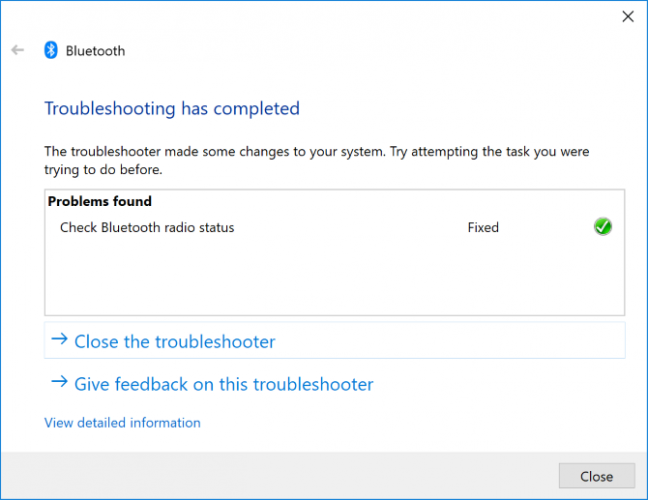
To run it, press Windows key + I to open Settings and go to Update & Security > Troubleshoot > Bluetooth > Run the troubleshooter. Follow the instructions.
It should fix any problems it finds, but some of them might require your manual action.
Fix Your Bluetooth Pairing Problems
It can be frustrating when Bluetooth doesn’t work, so hopefully one of our steps have resolved your problem.
If you’re interested in finding out even more about Bluetooth, take a look at the most common Bluetooth questions answere—find out who invented it, where the name came from, and more.
 Wawu Gist