View your phone screen on a bigger screen, with or without Chromecast

Whether you’re doing that with a Chromecast, which makes the job very simple and wireless, or you’re literally going to plug your handset into your TV, it can be easy enough to view your smartphone content on a bigger screen.
With that in mind, we’ve come up with this quick guide to help you connect your phone to your TV, so you can view your games, movies or photos on the big screen. One of these methods needs a Chromecast, so scroll down if you have one, but if not then the first guide is for you.
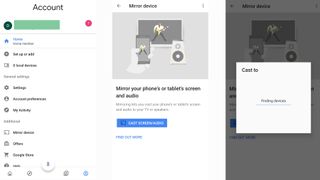
Once your Chromecast is set up and connected to your TV and your phone, open the Google Home app. Don’t press the icon for your device, as you’d expect, but actually press the button in the bottom right of the screen – it looks like a little face, with a circle around it.
In this menu scroll down to ‘Additional’, and the first option is ‘Mirror device’. Select it. You might be told that your device isn’t optimised for the experience, but we’ve often had that error pop up with cutting-edge premium smartphones, so ignore it and click on ‘Accept’.
Now you can see a big blue button saying ‘Cast Screen/Audio’ which, of course, you’re going to press. Your phone will search for nearby devices, which should be quick enough if you’ve already set up your Chromecast. Simply select it, and your phone screen should start playing on your TV screen!
Bear in mind that using Chromecast to connect your phone to your TV can eat quite a big chunk of battery, so make sure your phone is charged fully or is connected to a plug if you want to watch lots of content.
 Wawu Gist